
XDM, KDM, GDM, and XINIT on Linux: Differences and Functions
By Bruno Hoinacki

If you have ever used Linux distributions with a graphical interface, you have surely come across acronyms like XDM, KDM, GDM, and XINIT. To many, these terms sound technical and confusing, but in practice they are essential components for running and starting the graphical environment.
In this guide, we explain clearly and practically what each one does, how they relate to Xorg (the most widely used graphical server on Linux), and in which scenarios you may need to configure them.
🖥️ What is Xorg?
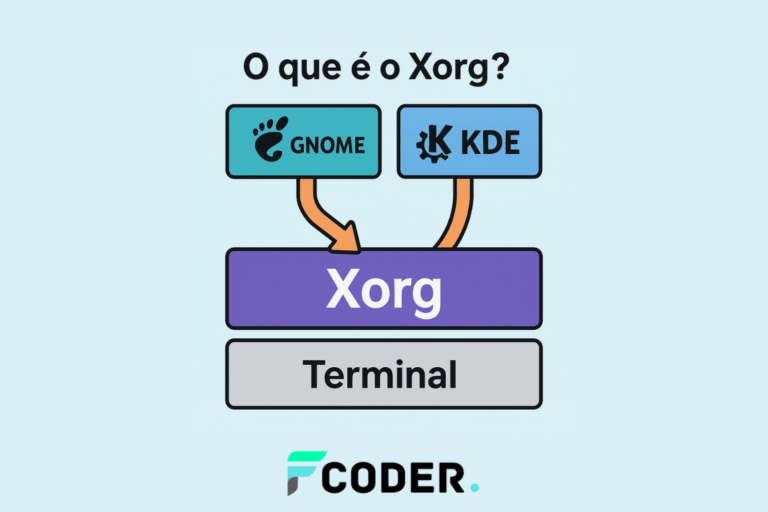
Xorg is the most traditional graphical server on Linux. It provides the foundation programs need to draw windows, menus, buttons, and all the visual content that appears on your screen.
Without Xorg (or another graphical server, such as Wayland), you would only have a text-mode terminal.
👉 Think of it as the “graphics engine” that allows GNOME, KDE, XFCE, and other desktop environments to exist.
⚡ What is XINIT?
XINIT is a program that serves as the launcher for the graphical server.
In practice, the command most used by end users is startx, which calls xinit to start the Xorg server. Then XINIT runs the .xinitrc configuration file, which defines which programs and desktop environment will be loaded.
📂 Where is the configuration file?
Linux looks for the .xinitrc file in two locations:
- ~/.xinitrc → in the user's directory.
- /etc/X11/xinit/xinitrc → the system-wide global file.
⚠️ If the file exists in the user's directory, it always takes priority over the global one.
📝 Practical example of a basic .xinitrc:
# Define um papel de parede
xsetbg -fullscreen /usr/share/backgrounds/mywallpaper.png &

# Abre um terminal em segundo plano
/usr/bin/xterm &

# Inicia a sessão do GNOME (ou outro ambiente configurado)
exec gnome-session
📌 Note that the exec command replaces the XINIT shell with the chosen graphical environment. When you end the graphical session, the X server is also shut down.

🔑 What starts the login screen?
If XINIT is responsible for opening the graphical session, what opens the login screen?
That job belongs to the Display Managers. They are loaded when the system enters Linux's graphical runlevel or target (depending on whether you use SysVinit or Systemd).
📌 Examples:
- With systemd, the target is:
/usr/lib/systemd/system/graphical.target- With SysVinit, the responsible runlevel is:
/etc/rc.d/rc.4Once that target is reached, a Display Manager is started to show the login screen.
👤 XDM — the classic X Display Manager
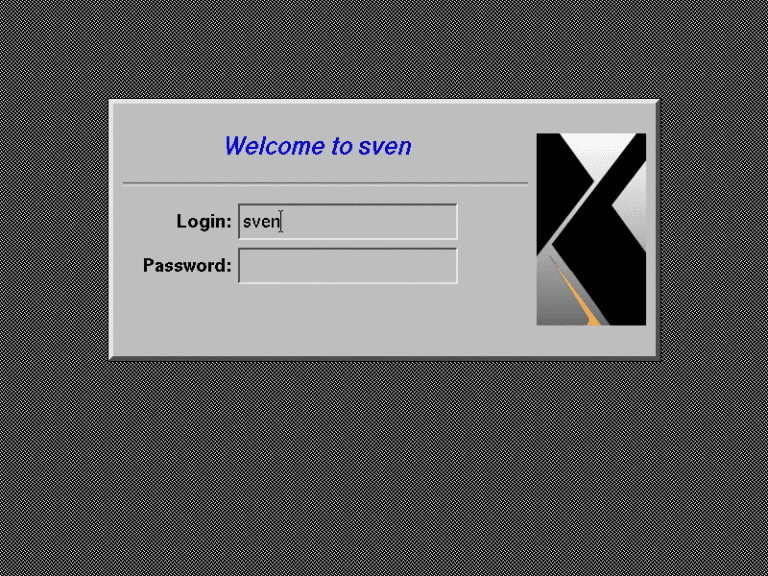
XDM (X Display Manager) is the most basic login manager, shipped with Xorg.
- Simple, straightforward interface.
- Allows graphical login with a username and password.
- Does not have many customization options.
- Generally used as a last-resort fallback when no other DM is configured.
🎨 KDM — KDE Display Manager
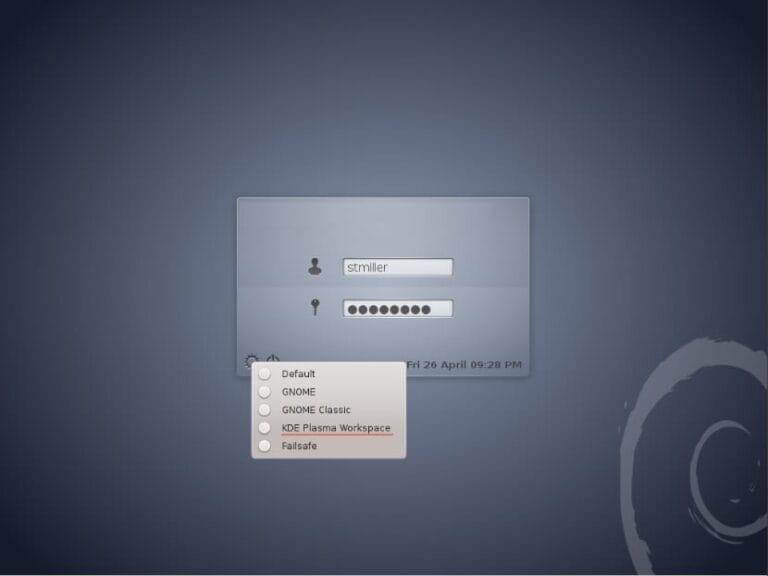
KDM (KDE Display Manager) is the login manager created for the KDE environment.
- More modern interface than XDM.
- Supports remote login (XDMCP).
- Lets you choose which graphical environment to start.
- Currently replaced by SDDM (Simple Desktop Display Manager) in modern distributions that use KDE Plasma.
🌐 GDM — GNOME Display Manager
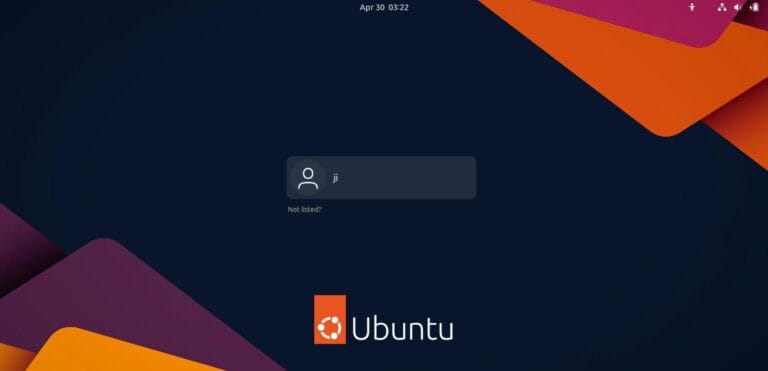
GDM (GNOME Display Manager) is the default manager for the GNOME environment.
- Clean, intuitive interface.
- Lets you select the user, language, and desktop environment.
- Support for Wayland and Xorg.
- One of the most widely used on popular distributions like Ubuntu and Fedora.
📌 Important: using GDM does not necessarily mean using GNOME. It is possible, for example, to start an XFCE or KDE session using GDM.
🤔 Common questions
1. Does using GDM mean I'll be running GNOME?
➡️ No. You can log in to other environments (XFCE, KDE, etc.) even with GDM.
2. Can I use KDM and open GNOME?
➡️ Yes. Just configure the manager to start the GNOME session.
3. Which is best: XDM, KDM, or GDM?
➡️ It depends on your environment. XDM is basic, KDM was popular on KDE, and GDM is now the most widely used on modern desktops.
💡 Extra tips
- If you want to customize what opens along with your graphical environment, edit the ~/.xinitrc file.
- If your distro uses systemd, you can enable/disable the Display Manager with:
# Ativar GDM
sudo systemctl enable gdm --now

# Ativar SDDM (caso KDE Plasma)
sudo systemctl enable sddm --now- To debug problems, check the logs at:
journalctl -xe🔗 External references
🚀 Conclusion
Now you know the difference between XINIT, XDM, KDM, and GDM:
- XINIT → starts the graphical server and the desktop environment.
- XDM/KDM/GDM → display the login screen and let you choose the session environment.
If you are setting up a Linux desktop, understanding these pieces will give you much more control over how your graphical interface starts.
👉 Liked the content? Keep following the Forcoder blog for more practical guides on Linux, DevOps, and development.