
Active Directory vs LDAP: Differences, Concepts, and How to Use Them in Practice
By Bruno Hoinacki

If you work with network administration, servers, or systems development that needs to integrate with corporate authentication, you have probably heard of Active Directory (AD) and LDAP. Although they often appear together, they are not the same thing. Many people still mix them up, and that can get in the way when planning or maintaining a secure, scalable environment.
In this article, we explain clearly and practically:
- What Active Directory is and how it works.
- What LDAP is and why it is so important.
- The main differences between the two.
- Practical examples of LDAP queries.
- The role of GPOs (Group Policy Objects) in AD.
- Best-practice tips for using each technology.
🗂️ What is Active Directory (AD)?
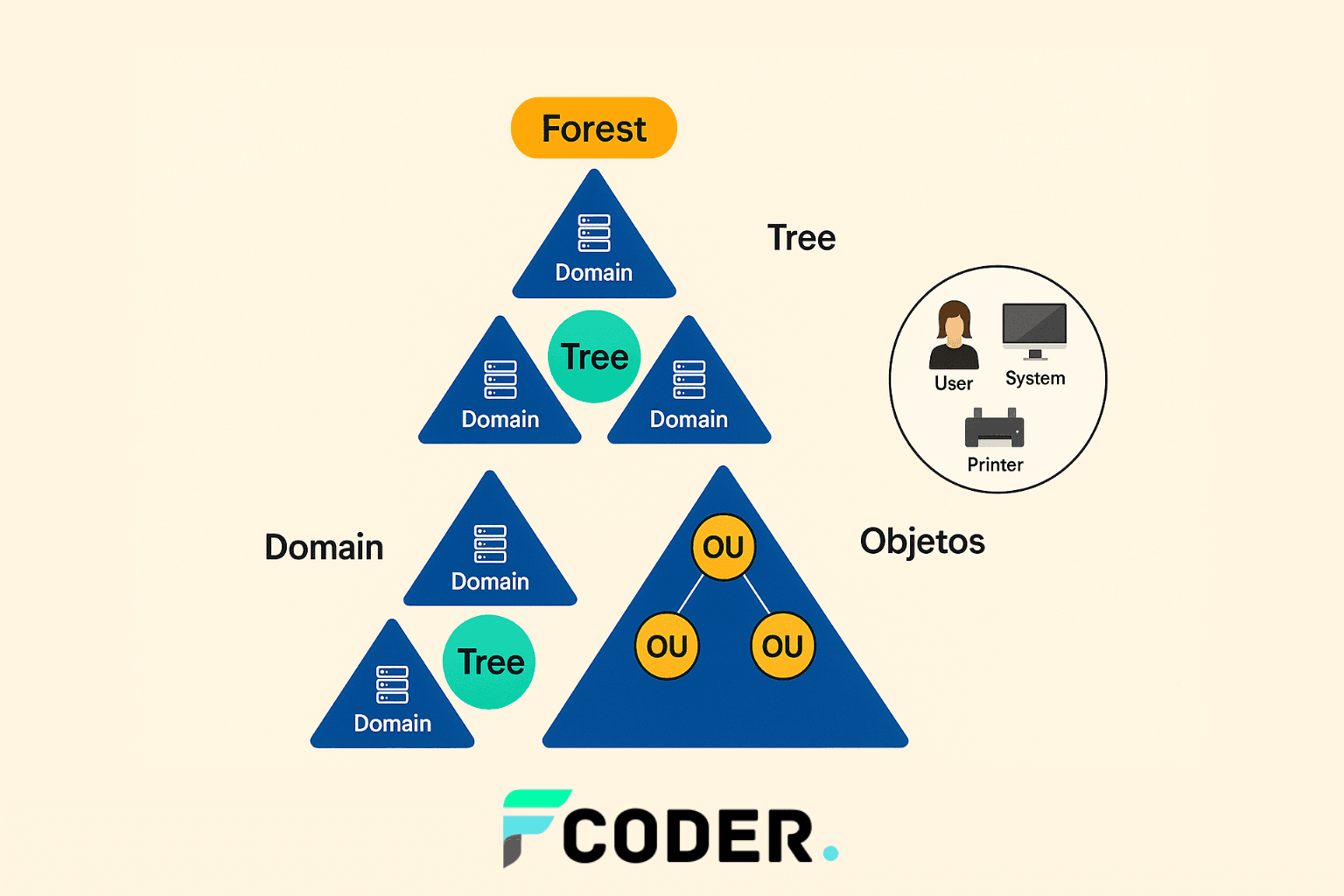
Active Directory is Microsoft's directory service, released along with Windows 2000 Server. It is responsible for organizing, authenticating, and managing all the resources of a corporate network: users, computers, printers, groups, and even security policies.
👉 In simple terms, AD is a hierarchical database that holds information about all the objects on a network.
Main AD features:
- User and computer authentication (centralized login).
- Group and permission management.
- Security policy enforcement via GPO (Group Policy Objects).
- Replication and redundancy across multiple domain controllers.
🛡️ The role of GPOs (Group Policy Objects)
GPOs are one of the most powerful features of Active Directory. They let administrators configure policies centrally and automatically apply those rules to users and computers in the domain.
With GPOs you can:
- Define security restrictions (such as blocking access to the Control Panel or disabling USB ports).
- Configure software automatically on workstations.
- Apply logon and logoff scripts.
- Manage network settings, printers, and updates.
📌 Practical example: you can create a GPO to force all company computers to use a screen saver that locks after 5 minutes of inactivity.
🛡️ Active Directory • Group Policy Objects
GPOs in practice: ready-made templates and paths
Click each item to see summarized instructions and ready-to-use snippets.
🔒 Security — Block Control Panel
# PowerShell (admin do domínio)
New-GPO -Name "USR_Bloquear_ControlPanel" | Out-Null
New-GPLink -Name "USR_Bloquear_ControlPanel" -Target "OU=Usuarios,DC=exemplo,DC=local"
# GPMC:
# User Config → Administrative Templates → Control Panel
#   Prohibit access to Control Panel and PC settings = Enabled
gpupdate /force
🧰 Security — Disable USB storage
New-GPO -Name "PC_Bloquear_USBStorage" | Out-Null
New-GPLink -Name "PC_Bloquear_USBStorage" -Target "OU=Computadores,DC=exemplo,DC=local"
# GPMC:
# Computer Config → Administrative Templates → System → Removable Storage Access
#   All Removable Storage classes: Deny all access = Enabled
gpupdate /force
🕒 Productivity — Lock via screen saver (5 min)
# GPMC (Usuários):
# User Config → Administrative Templates → Control Panel → Personalization
#   Enable screen saver = Enabled
#   Password protect the screen saver = Enabled
#   Screen saver timeout = 300
#   (Opcional) Force specific screen saver = scrnsave.scr
gpupdate /target:user /force
📦 Software — Deploy MSI via GPO
# Pré: \\srv\soft$\app.msi (permissão de leitura)
# GPMC:
# Computer/User Config → Policies → Software Settings → Software installation
#   New → Package → Assign (usar caminho UNC)
gpupdate /force
🧩 Scripts — Logon/Logoff & Startup/Shutdown
# GPMC:
# User Config → Policies → Windows Settings → Scripts (Logon/Logoff)
# Computer Config → Policies → Windows Settings → Scripts (Startup/Shutdown)
# Dica: prefira PowerShell; assine scripts se houver AppLocker.
🖨️ Network — Map printers and TCP/IP settings
# GPP (Preferences):
# User Config → Preferences → Control Panel Settings → Printers → New → TCP/IP Printer
# Computer Config → Preferences → Windows Settings → Registry/INI (ajustes de rede)
# Use WMI/Item-level targeting para escopos por site/sub-rede.
🔁 Updates — WSUS/Windows Update
# GPMC (Computadores):
# Computer Config → Administrative Templates → Windows Components → Windows Update
#  Specify intranet Microsoft update service location = Enabled (http://wsus.exemplo.local:8530)
#  Configure Automatic Updates = Enabled (ex.: 3am)
gpupdate /target:computer /force
🧱 Registry — Enforce policy via key
$gpo = New-GPO -Name "PC_Registro_Custom"
Set-GPRegistryValue -Name $gpo.DisplayName -Key "HKLM\Software\MinhaEmpresa" -ValueName "HabilitarX" -Type DWord -Value 1
New-GPLink -Name $gpo.DisplayName -Target "OU=Computadores,DC=exemplo,DC=local"
gpupdate /force- Test on a pilot OU before rollout.
- Prefer Policies when there is an equivalent in Preferences.
- Standardize names:
USR_/PC_+ purpose.
🔑 What is LDAP?
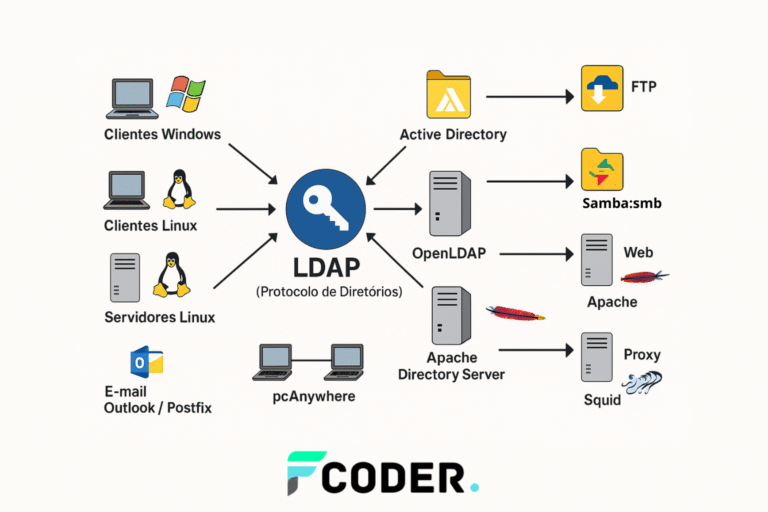
LDAP (Lightweight Directory Access Protocol) is a network protocol used to query and manipulate information in directory services. It is not a product, but rather the language used to talk to directory services.
📌 In other words: AD uses LDAP as a means of communication, but it is not the only one. Other examples of services that also use LDAP:
- OpenLDAP (very common in Linux environments).
- Apache Directory Server.
- Red Hat Directory Server.
A good analogy is:
- HTTP is a protocol.
- Apache is a web server that uses HTTP.
- LDAP is a protocol.
- Active Directory is a directory server that uses LDAP.
🔍 Differences between Active Directory and LDAP
Many people think LDAP and AD are synonyms, but in practice they are not. Here is a direct comparison:
🔍 Directories & Authentication
Summary: LDAP is a protocol for querying/modifying directories. Active Directory is a Microsoft directory service that uses LDAP (among other protocols) and adds features such as Kerberos, group policies (GPO), domains/forests, and centralized management of Windows computers.
| 📜 Topic | Active Directory (AD) | LDAP (protocol) |
|---|---|---|
| What is it? | A complete directory service (Microsoft) with authentication, authorization, policies, and endpoint management. | A directory access protocol (RFCs): defines how clients read/write data in a directory. |
| Scope | Platform: AD DS, AD LDS, GPOs, integrated DNS, Sites/Replication, Trusts, OU, Schema, Kerberos, NTLM. | Communication layer: bind, search, add, modify, delete operations. |
| Protocol(s) | Supports LDAP/LDAPS, Kerberos, SMB/CIFS, RPC, LDAP GC (port 3268/3269), and more. | LDAP/LDAPS (389/636). By itself, it does not include Kerberos, SMB, GPO, etc. |
| Authentication | Kerberos (default in a domain) and NTLM as legacy; integrates SSO on Windows. | Simple LDAP (bind) or SASL; can coexist with Kerberos, but does not provide it. |
| Policies & Management | GPO, preferences, WSUS, logon scripts, compliance: focused on Windows workstations/users. | No GPOs. LDAP servers (OpenLDAP/389-DS) provide the directory; endpoint management is external. |
| Logical model | Forests, domains, trees, sites, OUs, groups (domain local/global/universal), global/partial catalogs. | Generic DIT tree. Structure and rules depend on the server/schema (inetOrgPerson, posix*, custom). |
| Schema | AD schema with Microsoft classes/attributes (e.g., extended user, group, computer). | Standard LDAP schema (RFCs) + vendor extensions (OpenLDAP, 389-DS, eDirectory). Flexible. |
| Replication | Multimaster with site-based topology, partitions (Domain/Config/Schema), scheduling, and compression. | Depends on the LDAP server (e.g., OpenLDAP syncrepl, 389-DS multimaster). Implementation varies. |
| Tools | RSAT/GPMC, ADUC/ADAC, PowerShell (Get-ADUser…), Active Directory Administrative Center. | ldapsearch, ldapadd, Apache Directory Studio, vendor-specific tools. |
| Platforms | Windows Server (domain controllers); Windows/macOS/Linux clients can join. | Any OS with an LDAP server (OpenLDAP, 389-DS, eDirectory, OpenDJ, etc.). |
| Encryption | LDAPS, LDAP signing/sealing, Kerberos with tickets (TGT/TGS). Domain security policies. | Simple LDAP (389) or LDAPS (636). Security depends on TLS/SASL configured on the server/client. |
| Typical use cases | Corporate Windows environments with SSO, GPO, workstation join, printing, WSUS, ADFS. | Generic identity backends: app authentication, Unix/Linux (PAM/NSS), web services. |
| When to choose it | If you need central management of Windows PCs/users and security policies. | If you only need an identity directory and want platform freedom. |
AD example (PowerShell)
# Procurar usuários cujo nome começa com 'Ana' no AD
Get-ADUser -Filter "Name -like 'Ana*'" -Properties mail |
  Select-Object SamAccountName, Name, mail
LDAP example (ldapsearch)
# Consultar usuários via filtro LDAP (RFC 4515)
ldapsearch -H ldaps://ldap.exemplo.com:636 -D "cn=admin,dc=exemplo,dc=com" -W \
  -b "ou=people,dc=exemplo,dc=com" "(uid=ana*)" uid cn mail
💡 Quick tip: thinking “AD uses LDAP” avoids confusion. LDAP describes how to talk to the directory; AD describes what the directory is and everything it delivers around it (GPO, Kerberos, domains).
⚙️ What is an LDAP query?
LDAP works based on queries. An LDAP query is nothing more than a command sent to the directory service to search for or manipulate information.
🔹 Practical example: find all users in a specific group.
(&(objectClass=user)(sAMAccountName=seuUsuario)
(memberof=CN=SeuGrupo,OU=Usuarios,DC=SeuDominio,DC=com))
In practice, you will rarely need to write LDAP queries directly, since tools like PowerShell or graphical interfaces do that work for you.
PowerShell example:
# Listar usuários de um grupo
Get-ADGroupMember -Identity "SeuGrupo" | Get-ADUser -Property DisplayName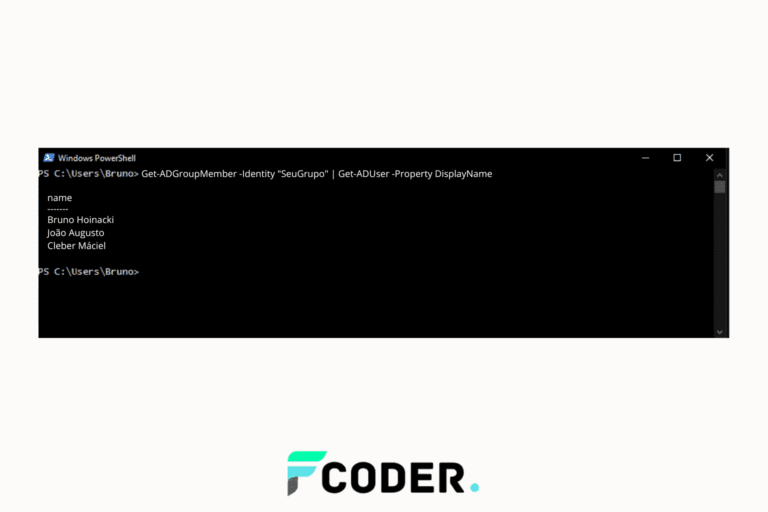
💡 Extra Tips and Best Practices
Directory Security and Management
Essential best practices for environments with Active Directory, LDAP, and GPOs.
🔒
Always use secure connections (LDAPS)
Avoid sending credentials in plain text. Prefer LDAPS (port 636) or LDAP with StartTLS.
🛡️
Keep AD up to date
Install security patches regularly. Outdated domain controllers are easy targets.
👥
Use groups instead of individual permissions
Centralize permissions in security groups. This simplifies administration and reduces errors.
📊
Monitor suspicious access
Set up centralized logs (SIEM) to identify attack attempts and misuse.
📑
Document and version your GPOs
Control changes. Poorly planned GPO changes can cause large-scale outages.
🔗 Useful external references
- Official Active Directory documentation.
- LDAP RFC 4511 standard.
- OpenLDAP project.
- Documentation on Group Policy Objects.
🚀 Conclusion
Active Directory and LDAP are directly related, but they are not the same thing. While AD is a Microsoft product that organizes and manages network resources, LDAP is just the protocol used to communicate with directories, including, but not limited to, AD.
In addition, within AD, GPOs are an indispensable feature for centralizing and automating security and usability settings in corporate environments.
If you are a network administrator or a developer who needs to integrate corporate authentication, understanding this difference and how to leverage GPOs is essential for choosing the right tools and avoiding confusion.
🚀 Put it into practice
You have seen how AD, LDAP, and GPOs can transform identity and security management.
Now it is time to apply these concepts in your environment, or count on someone who knows the subject.
💡 Our team can help with planning, auditing, and secure deployment of directories.