
How to Manage an Ubuntu Server with systemctl and Other Essential Commands
By Bruno Hoinacki
If you develop applications or keep Linux servers running, mastering the right terminal commands can save you a lot of time and headaches. On Ubuntu, one of the most popular operating systems for development, there are powerful tools that make it easier to control and monitor services, packages, and system resources.
In this article, we explore systemctl (for managing services) and other essential commands for keeping an Ubuntu server healthy, up to date, and secure.
🔧 systemctl: your control panel for services on Ubuntu
systemctl is like the “control panel” for services on Linux systems that use systemd (the standard init system in most modern distros, including Ubuntu). With it, you can start, stop, restart, enable, or disable any service on your system, such as MongoDB, NGINX, MySQL, Redis, and more.
📌 Essential systemctl commands:
Open the terminal and type:
sudo systemctl status nome-do-serviço     # Verifica o status atual
sudo systemctl start nome-do-serviço      # Inicia o serviço
sudo systemctl stop nome-do-serviço       # Para o serviço
sudo systemctl restart nome-do-serviço    # Reinicia o serviço
sudo systemctl enable nome-do-serviço     # Ativa para iniciar no boot
sudo systemctl disable nome-do-serviço    # Desativa no boot
🔍 Practical example:
sudo systemctl restart nginx # Reiniciar o servidor nginxThis command restarts the NGINX web server, applying changes made to the configuration file without having to reboot the machine.
📜 journalctl: follow logs in real time
Want to understand why a service failed? Or see what happened before a crash? journalctl is your ally for inspecting systemd logs.
📌 Useful examples:
journalctl                         # Mostra todos os logs do sistema
journalctl -u nginx                # Logs específicos do serviço nginx
journalctl -f -u mongod            # "Segue" os logs em tempo real (como tail -f)
💡 Tip: use CTRL + C to exit the live view.
📦 apt: the package manager every dev needs to know
Keeping your server up to date and installing new tools is a job for apt.
📌 Everyday commands:
sudo apt update                    # Atualiza a lista de pacotes
sudo apt upgrade                   # Instala atualizações disponíveis
sudo apt install nome-do-pacote   # Instala novos pacotes
sudo apt remove nome-do-pacote    # Remove pacotes que não usa mais
🔍 Example:
sudo apt install htop # instala interface de monitoramento de recursos htophtop is a more visual, interactive version of top, used to monitor processes.
🌐 Network commands: understand what's going on
Knowing what's happening on your server's network is essential, especially for web environments.
📌 Useful commands:
ip addr                            # Mostra IPs e interfaces de rede
ip route                           # Exibe as rotas de rede
ss -tuln                           # Lista portas abertas e serviços escutando
ping google.com                    # Testa a conectividade com a internet
💡 Replace the old netstat with ss, which is faster and more modern.
🔍 top and htop: see what's eating CPU and memory
If something is slow, the culprit may be a process hungry for CPU or RAM.
📌 Use:
top                                # Interface simples para monitoramento
htop                               # (se instalado) interface visual interativa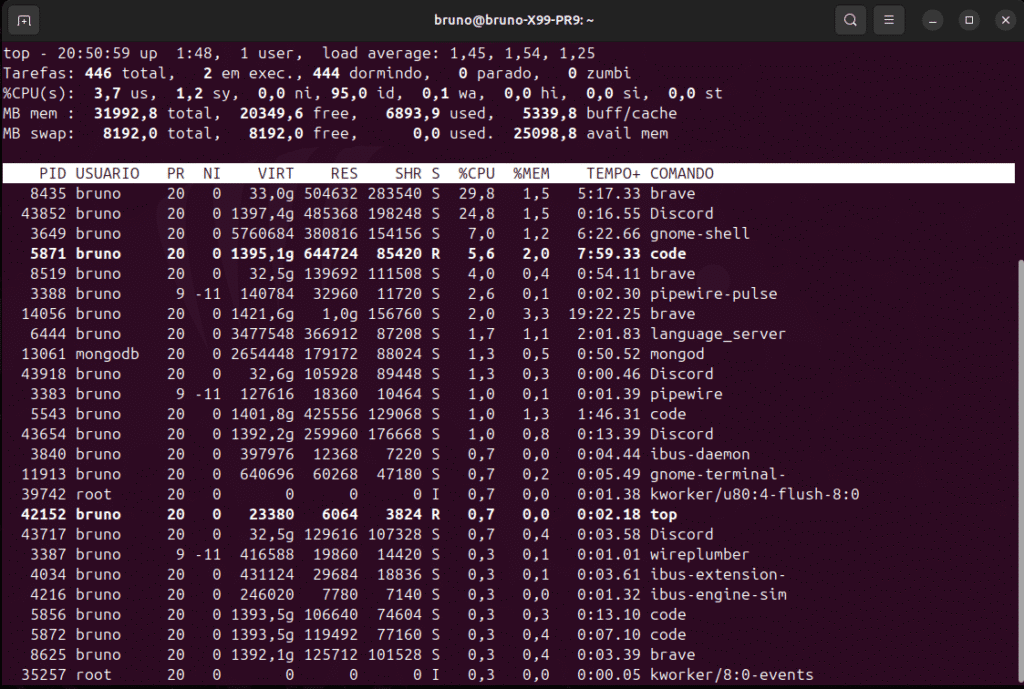
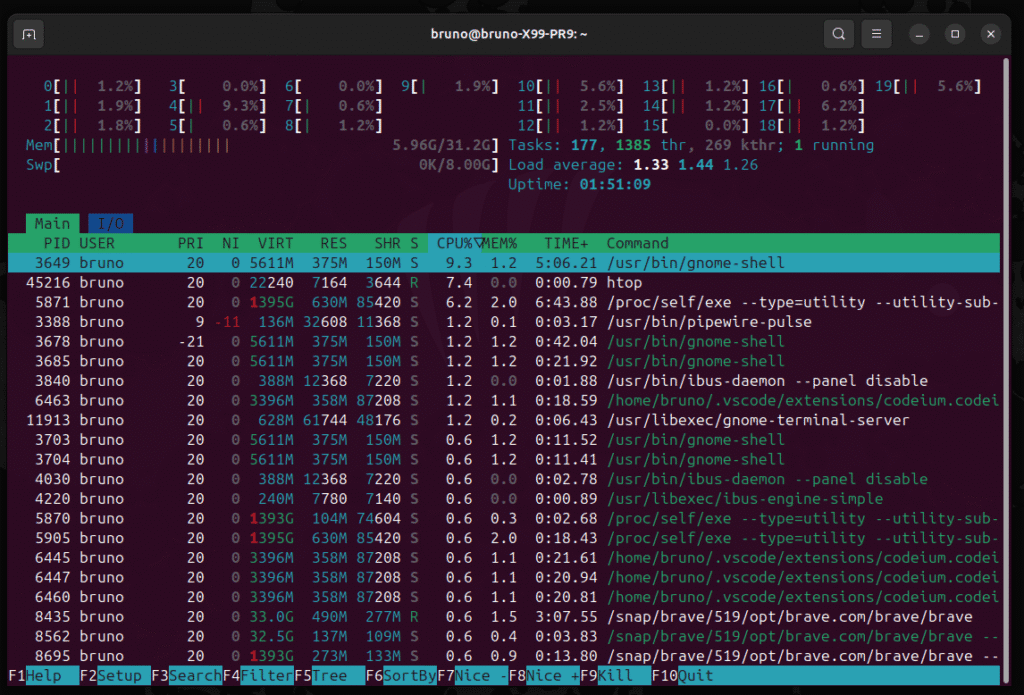
With htop, you can navigate with the keyboard, kill processes, and view per-core usage. It's an indispensable tool for quick diagnostics.
🛡️ ufw: uncomplicated firewall on Ubuntu
ufw (Uncomplicated Firewall) is perfect for blocking or opening ports without the hassle.
📌 Practical examples:
sudo ufw enable                    # Ativa o firewall
sudo ufw allow 22                  # Libera a porta 22 (SSH)
sudo ufw allow 80,443/tcp          # Libera HTTP e HTTPS
sudo ufw status                    # Exibe regras ativas
💡 Important for remote servers: Remember to allow port 22 before enabling the firewall, or you may lock yourself out over SSH!
🧪 Ready-made commands for popular services
# MongoDB
sudo systemctl status mongod
sudo systemctl restart mongod

# MySQL
sudo systemctl restart mysql

# NGINX
sudo systemctl restart nginx
These are the commands you'll type most often in a modern web development environment.
🧠 Extra: automate common tasks with a Shell Script
You can create a small .sh script to update the system or restart services automatically.
Example: atualizar.sh
#!/bin/bash
echo "Atualizando o sistema e reiniciando serviços essenciais..."
sudo apt update && sudo apt upgrade -y
sudo systemctl restart nginx
sudo systemctl restart php8.2-fpm
Make the script executable:
chmod +x atualizar.shRun it with:
./atualizar.shSo, to sum up...
Mastering tools like systemctl, apt, ufw, and journalctl makes you a more efficient and self-sufficient developer or administrator. This knowledge is especially valuable when working with staging servers, production, or even containers and VPSs.
If you manage web applications, APIs, or databases on Ubuntu, these commands are the essential basics so you don't always have to depend on someone from DevOps.
But if you need help, feel free to get in touch with Forcoder!