
Linux Essentials Guide: Master the Essential Commands
By Bruno Hoinacki

If you're starting your Linux journey or already manage servers and want to review the basics, this guide is for you. Mastering basic commands not only speeds up your routine, it also gives you more confidence to solve problems, automate tasks and better understand what happens under the hood.
In this article we'll explore the essential Linux commands in a practical, hands-on way, without dumping a pile of loose instructions. Each command comes with context, real examples, use cases and practical mini tutorials for you to try right in the terminal.
📂 Exploring Files and Folders with ls
ls is the most commonly used command to list files and directories. It looks simple, but with a few parameters it becomes powerful.
# Listar arquivos e pastas
ls


# Listar em formato detalhado (permissões, dono, tamanho, data)
ls -l


# Incluir arquivos ocultos (aqueles que começam com .)
ls -la


# Ordenar por data de modificação (mais recentes no fim)
ls -lt
💡 Extra tip: combine ls -lh to see human-readable sizes (KB, MB, GB).
Mini tutorial:
cd ~ # Vá para sua pasta pessoal
mkdir teste # Crie uma pasta chamada teste
cd teste # Acesse a pasta criada
ls -la # Liste os arquivos e confirme que está vazia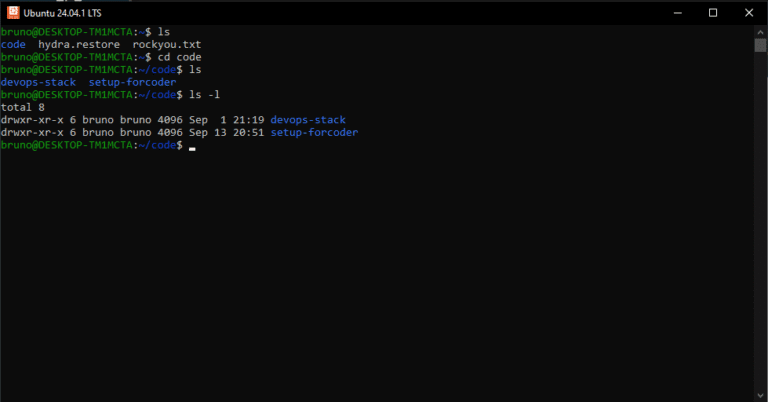
Linux • Command
Quick comparison: ls with different parameters
Open the items to see the description and typical output.
ls — simple listing
Lists files and directories in the current directory.
$ ls
arquivo1.txt  notas.md  pasta1/  script.sh
ls -l — long format
Shows permissions, links, owner, group, size and date.
$ ls -l
-rw-r--r-- 1 user user  1240 Jan 21 10:15 script.sh
drwxr-xr-x 3 user user  4096 Jan 20 09:02 pasta1
-rw-r--r-- 1 user user  2789 Jan 18 18:40 notas.md
ls -a — includes “dotfiles”
Includes files and folders that start with . (hidden).
$ ls -a
.  ..  .gitignore  .env  arquivo1.txt  pasta1  script.sh
ls -lh — human-readable sizes
Combines with -l to show KB/MB/GB.
$ ls -lh
-rw-r--r-- 1 user user 12K Jan 21 10:15 script.sh
-rw-r--r-- 1 user user 2.7K Jan 18 18:40 notas.md
ls -R — recursive
Lists subdirectories recursively.
$ ls -R
.:
arquivo1.txt  pasta1

./pasta1:
subpasta  dados.csv

./pasta1/subpasta:
notas.md
-t, -S, -r — sorting
-t: sorts by date (newest first).-S: sorts by size (largest first).-r: reverses the order (e.g., oldest first).
$ ls -lt
-rw-r--r-- 1 user user 2.7K Jan 22 09:10 changelog.md
-rw-r--r-- 1 user user  12K Jan 21 10:15 script.sh
ls -lah and other shortcuts
Common combinations:
ls -lah— long + hidden + readable.ls -ltr— long + by ascending date (oldest last).ls -lS— long + by size.
$ ls -lah
drwxr-xr-x  6 user user 4.0K Jan 22 09:10 .
drwxr-xr-x 18 user user 4.0K Jan 20 08:00 ..
-rw-r--r--  1 user user 2.7K Jan 18 18:40 .env
-rw-r--r--  1 user user  12K Jan 21 10:15 script.sh
Tips, aliases and gotchas
- Many distros already ship an alias:
alias ls='ls --color=auto'. lsdoes not add up directory sizes (usedu -shorls -ldfor the directory itself).- For names with spaces, use quotes:
ls "Minha Pasta". - Globs:
ls *.log,ls **/*.md(ifglobstaris enabled).
🔒 Permissions with chmod
On Linux, every file and directory has read, write and execute permissions for the user, group and others.
# Dar permissão de execução a um script
chmod +x script.sh


# Definir permissões numéricas (r=4, w=2, x=1)
chmod 755 script.sh755→ the owner can do everything; group and others can only read and execute.644→ the owner can read and write; group and others can only read.
Mini tutorial:
touch meu_script.sh # Crie um arquivo vazio
ls -l meu_script.sh # Veja as permissões atuais
chmod +x meu_script.sh # Adicione permissão de execução
ls -l meu_script.sh # Confira a mudança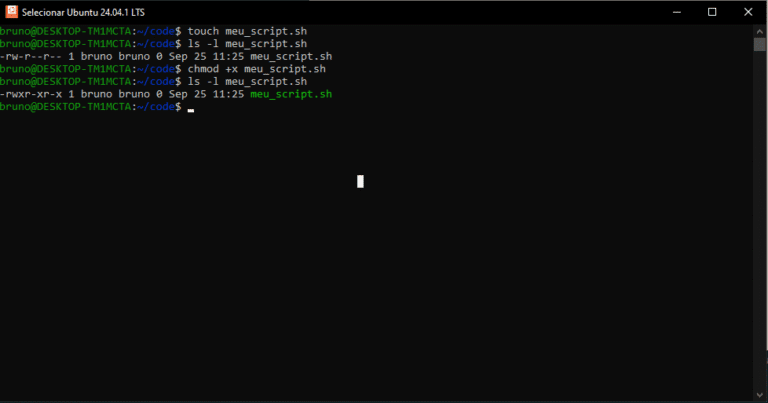
Linux • Permissions and Metadata
Understanding Every Number and Permission in ls -l
Open the items to see descriptions, examples and tips.
Basic format of an ls -l line
$ ls -l
-rw-r--r-- 1 alice dev 2789 Jan 18 18:40 notas.md
^ ^^^^^^^^^ ^ ^^^^^ ^^^^ ^^^ ^^ ^^ ^^^^^^^
| |         | |     |    |   |  |  └─── Nome (+ "→ alvo" se link)
| |         | |     |    |   └────── Data/Hora
| |         | |     |    └────────── Tamanho (bytes; use -h p/ KB/MB)
| |         | |     └─────────────── Grupo
| |         | └────────────────────── Dono (usuário)
| |         └──────────────────────── Nº de links (hard links / dirs)
| └────────────────────────────────── Permissões (rwx para U/G/O)
└──────────────────────────────────── Tipo de arquivo (-, d, l, c, b, p, s)
Column 1 — file type
-regular fileddirectorylsymbolic linkccharacter device •bblock devicepnamed pipe (FIFO) •ssocket
Columns 2–10 — rwxrwxrwx
Three triplets: owner • group • others. Each letter:
- r (read): read the file / list the directory contents
- w (write): write to the file / create, rename and delete inside the directory
- x (execute): execute the file / enter the directory
-rw-r--r-- → dono: rw-, grupo: r--, outros: r--setuid, setgid and sticky bit
setuid (s/S in the owner's
xposition): runs with the owner's UID.-rwsr-xr-x(lowercase = hasx+ setuid) •-rwSr-xr-x(uppercase = nox).- setgid (s/S in the group's
xposition): inherits the group on new files; on directories, new items get the same group. - sticky (t/T in the “others”
xposition on directories): only the owner can delete inside the directory (e.g.,/tmp→drwxrwxrwt).
chmod u+s arquivo   # setuid
chmod g+s pasta     # setgid
chmod +t  pasta     # sticky
Link count (hard links / directories)
Files: number of hard links pointing to the same inode. Directories: at least 2 (. and ..) + 1 per subdirectory.
$ ln arquivo a2 && ls -l arquivo a2
-rw-r--r-- 2 alice dev 0 Jan 21 10:00 a2
-rw-r--r-- 2 alice dev 0 Jan 21 10:00 arquivo  # “2” = dois nomes p/ o mesmo inode
Owner (user) and Group
They control who gets the first and second permission triplets.
$ chown alice:dev arquivo   # muda dono e grupo
$ chgrp dev arquivo         # muda só o grupo
Size (bytes) and variations
- Use
-hfor human-readable sizes (12K,5.3M). - For symbolic links, the size is the length of the target path.
- For devices (
c/b), the column shows major:minor instead of bytes.
$ ls -lh /dev/null
crw-rw-rw- 1 root root 1, 3 Jan  1 12:00 /dev/null   # major,minor
Date/Time shown
- By default, it shows mtime (content modification).
- Older files may show the year instead of the time.
- Use
--time=atime|ctime|birth(if supported) to switch the field.
Item name and symbolic links
If it is a symbolic link, it appears as name → target.
$ ln -s /etc/hosts hosts-link && ls -l hosts-link
lrwxrwxrwx 1 alice dev 10 Jan 21 10:20 hosts-link → /etc/hosts
How to read the numbers (e.g., 755, 644)
Each triplet is a number: r=4, w=2, x=1. Add up the values:
7 = rwx (4+2+1)
6 = rw- (4+2)
5 = r-x (4+1)
4 = r-- (4)
0 = ---
# Exemplos
chmod 644 arquivo # -rw-r--r--
chmod 755 script.sh # -rwxr-xr-x
chmod 770 pasta # rwx para dono e grupo; outros sem acessoACLs (+) and extended attributes
- A
+after the permissions indicates an extra ACL:-rw-r--r--+. See it withgetfacl arquivo. - On some distros/systems,
@indicates extended attributes (e.g., macOS). - For ext* attributes, use
lsattr/chattr(e.g., immutablei).
⚙️ Managing Processes with ps and kill
Every running process on Linux has a PID (Process ID). To find and terminate processes, we use ps and kill.
# Listar processos do usuário atual
ps


# Listar todos os processos
ps aux


# Procurar por um processo específico (exemplo: nginx)
ps aux | grep nginx


# Encerrar processo pelo PID
kill 1234


# Encerrar processo à força
kill -9 1234
💡 Best practice: before using kill -9, try to terminate the process normally. The -9 signal forces termination and can cause problems if the process is handling files.
Mini tutorial:
sleep 1000 & # Crie um processo de teste em background
ps aux | grep sleep # Encontre o PID
kill <PID> # Encerre o processo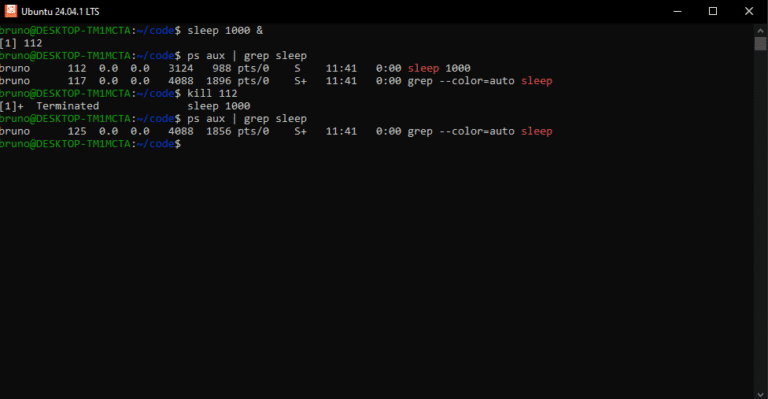
Linux • Processes
Steps: Finding and Terminating Processes
Use with care ⚠️ terminating critical processes can freeze the system.
1
List running processes
$ ps aux        # visão geral
$ top           # monitor interativo
$ htop          # versão avançada (se instalado)
2
Find by name
$ pidof firefox        # retorna PID
$ pgrep -l nginx       # lista PIDs + nomes
$ ps aux | grep python # filtra manualmente
3
Terminate by PID
$ kill 1234       # encerra com SIGTERM (educado)
$ kill -9 1234    # encerra forçado (SIGKILL)
4
Terminate by name
$ killall firefox   # encerra todos os processos firefox
$ pkill -f script.py # encerra por padrão ou comando
5
Confirm the process stopped
$ pgrep firefox  # nada retornado → sucesso
$ ps aux | grep nome
🔄 Controlling Services with systemctl
systemctl is used to manage services on modern Linux distributions that use systemd as their init system (such as Ubuntu, Debian and CentOS). It is the standard tool for controlling and monitoring system services.
# Iniciar um serviço
sudo systemctl start nginx


# Parar um serviço
sudo systemctl stop nginx


# Reiniciar um serviço
sudo systemctl restart nginx


# Verificar status
sudo systemctl status nginx


# Habilitar para iniciar automaticamente no boot
sudo systemctl enable nginx
Mini tutorial:
sudo systemctl status ssh # Veja se o SSH está rodando
sudo systemctl stop ssh # Pare o serviço
sudo systemctl start ssh # Inicie novamente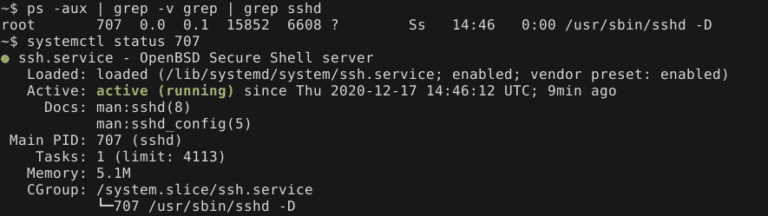
Click here to read more about How to Manage an Ubuntu Server with systemctl and Other Essential Commands.
🌐 Network Configuration with ifconfig and ip
Historically, we used ifconfig. Today the recommended command is ip.
# Ver interfaces de rede
ifconfig


# Alternativa moderna
ip addr show


# Exibir rotas
ip route


# Subir ou derrubar interface de rede
sudo ip link set eth0 up
sudo ip link set eth0 down
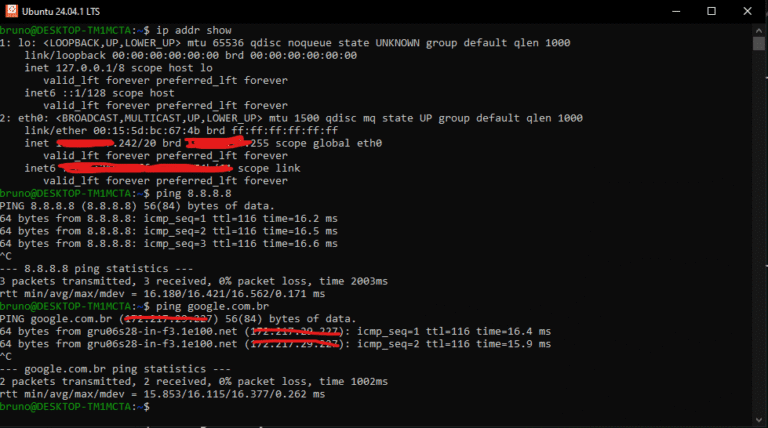
Mini tutorial:
ip addr show # Veja suas interfaces
ping 8.8.8.8 # Teste conectividade com Google DNS
💡 Extra tip: ip is more complete and supported on modern systems. Use it whenever possible.
🌐 ifconfig × ip
The ifconfig command is obsolete on most distros. ip is the modern, more powerful alternative.
🕹️ ifconfig (old)
ifconfig→ list interfacesifconfig eth0 up→ enable the interfaceifconfig eth0 192.168.1.10→ assign an IP
⚡ ip (modern)
ip addr→ list interfacesip link set eth0 up→ enable the interfaceip addr add 192.168.1.10/24 dev eth0→ assign an IP
💡 Tip: always use ip for better compatibility and extra features (ip route, ip neigh, etc.).
📡 Monitoring Connections with netstat and ss
netstat is a classic, but just like ifconfig, it is being replaced by ss.
# Mostrar conexões ativas
netstat -tulnp


# Usando ss (mais rápido e moderno)
ss -tulnp


# Ver portas abertas
ss -ltn-t→ TCP connections-u→ UDP connections-l→ listening services-n→ show numeric IPs/ports-p→ show the associated process
Mini tutorial:
ss -ltn # Veja portas abertas
ss -tulnp # Veja processos associados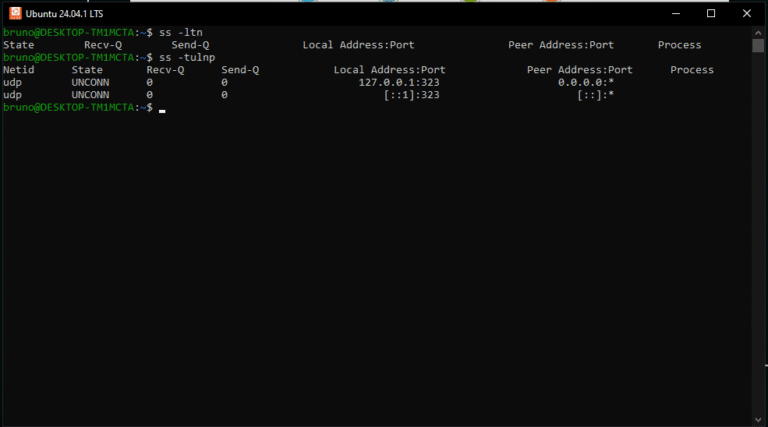
🔗 netstat × ss
netstat is obsolete on several distributions. Use ss as a faster, more modern alternative.
| 📜 Action | 🕹️ netstat | ⚡ ss |
|---|---|---|
| List all connections | netstat -a | ss -a |
| List TCP connections | netstat -at | ss -t -a |
| List UDP connections | netstat -au | ss -u -a |
| Show statistics | netstat -s | ss -s |
| List processes and PIDs | netstat -p | ss -p |
| List listening ports | netstat -lntp | ss -lntp |
💡 ss is more efficient on modern systems and can replace practically every use of netstat.
✍️ Creating and Editing Files
Besides managing processes and networks, you'll need to handle files every day. Here are some fundamental commands:
# Criar um arquivo vazio
touch exemplo.txt


# Adicionar conteúdo com echo
echo "Olá Linux!" > exemplo.txt


# Visualizar conteúdo com cat
cat exemplo.txt


# Editar com nano
nano exemplo.txt


# Editar com vim
vim exemplo.txt


# Renomear arquivo
mv exemplo.txt novo_nome.txt


# Apagar arquivo
rm novo_nome.txt
Mini tutorial:
cd ~
mkdir projeto
cd projeto
touch notas.txt
nano notas.txt # Escreva algo e salve (CTRL+O, ENTER, CTRL+X)
cat notas.txt # Veja o conteúdo
mv notas.txt ideia.txt
rm ideia.txt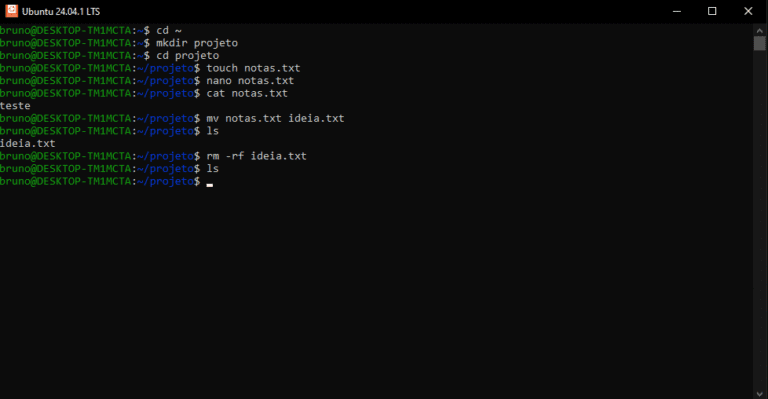
🎯 Extra Tips for Everyday Use
Ready-to-Copy Shortcuts
Use man <comando> for help • combine pipes | for powerful filters • create aliases to speed things up.
📂 ls Basics
# Listagem detalhada + ocultos + tamanhos legíveis
alias ll='ls -lah'
# Listagem leve com colunas
alias l='ls -CF'
# Apenas ocultos inclusos (sem . e ..)
alias la='ls -A'
# Ordenar por tempo (mais recentes no fim) e tamanhos legíveis
alias lt='ls -lht'
💡 Tip: add them to ~/.bashrc or ~/.zshrc and run source.
🧭 Quick Navigation
# Subir diretórios rápido
alias ..='cd ..'
alias ...='cd ../..'
alias ....='cd ../../..'
# Voltar ao diretório anterior
alias -- -='cd -'
# Criar pasta e entrar
mkcd(){ mkdir -p "$1" && cd "$1"; }
🔁 Use mkcd projeto to create the folder and enter it right away.
🌱 Git Essentials
# Status curto + branch/graph
alias gs='git status -sb'
# Add tudo e commit rápido
alias ga='git add -A'
alias gc='git commit -m'
# Push/pull diretos
alias gp='git push'
alias gpl='git pull --rebase'
# Log compacto
alias gl='git log --oneline --graph --decorate --all'
✅ Combine: ga → gc "msg" → gp.
🌐 Network & IP
# Meu IP público
alias myip='curl -s https://ifconfig.me'
# Interfaces e endereços
alias ipa='ip -brief addr'
# Portas em escuta (TCP)
alias listen='ss -lnt'
# Rotas rápidas
alias routes='ip route show'
⚡ Prefer ip/ss over legacy utilities.
🧵 Processes
# Buscar processo por nome (case-insensitive)
psg(){ ps aux | grep -i --color=auto "$1"; }
# Encerrar com SIGKILL rapidamente
alias k9='kill -9'
# Top simplificado (se instalado)
alias htop5='htop -d 10'
⚠️ Use k9 with care; try kill without -9 first.
💾 Disk & Utilities
# Uso de disco por FS (legível + tipo)
alias dfh='df -hT'
# Espaço por pasta (ordem crescente)
alias duh='du -sh -- * | sort -h'
# Repetir último comando com sudo
please(){ sudo $(fc -ln -1); }
📝 please reruns the last command with sudo.
⚙️ Mini tutorial
echo "alias ll='ls -la'" >> ~/.bashrc
# Dica: cole também outros aliases acima no mesmo arquivo
source ~/.bashrc
ll  # Agora você pode usar ll no lugar de ls -la
📦 Bash: ~/.bashrc • Zsh: ~/.zshrc.
🔗 External References
- Arch Linux Coreutils documentation
- systemd documentation
- Official guide to the ip command
- ss command manual
🚀 Conclusion
Mastering essential Linux commands is like learning to drive: at first it seems like a lot, but soon it becomes second nature. Every command presented here, from the simple ls to the powerful systemctl, is a tool that will make you more productive and safer when using the system.
👉 Now it's your turn: open a terminal and follow this article's mini tutorials. Try creating files, editing with nano, killing processes and checking open ports. The more you practice, the more natural your command of Linux will be.
And if you want to deepen your knowledge of Linux, automation and DevOps, keep following the Forcoder blog. 😉